Calendar events
The Calendar events section of the user interface lets you define events that give value to calendar type variables declared in the script (see Calendar variables), without needing to send them as an RPC command from an external platform.
To create local events, you need at least one calendar variable defined in the script (Script tab → Variables). If there isn't one, the event list shows a notice asking you to define one first.
Calendar mode
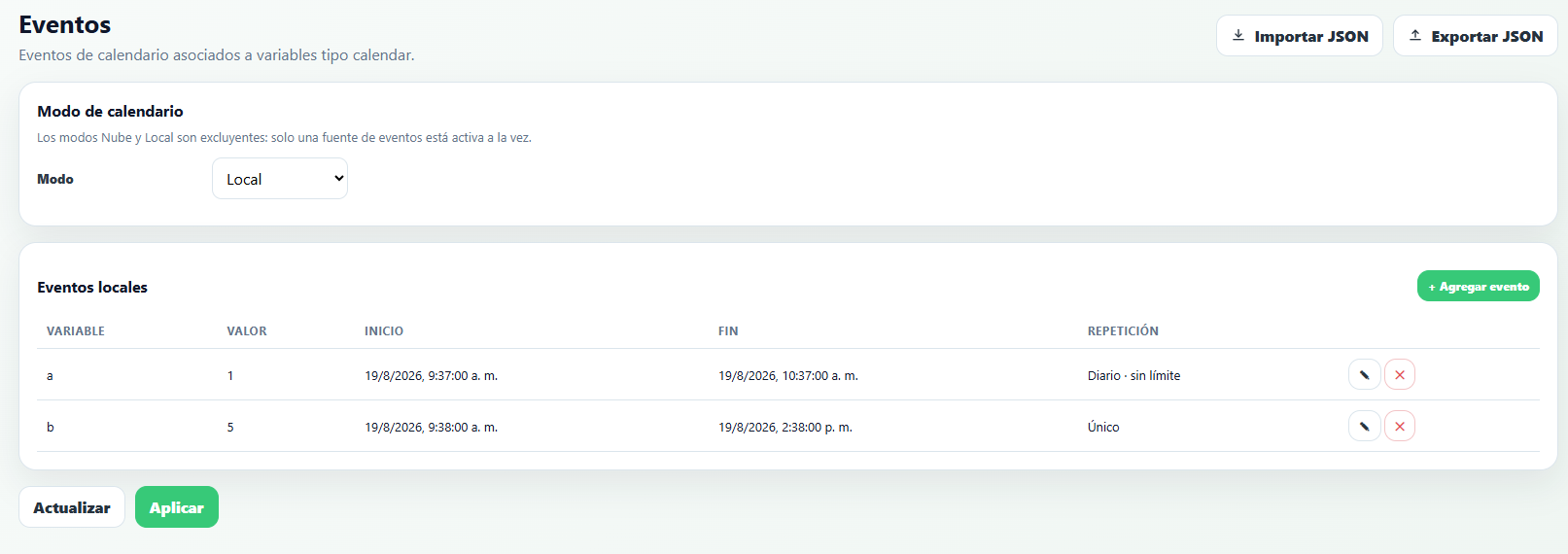
The calendar Mode defines where the events that control the calendar variables come from, and has three mutually exclusive options (only one event source is active at a time):
- Disabled — the
calendarvariables always stay at their default value. - Cloud (ThingsBoard / MQTT) — events are defined remotely via the RPC command whose method is
calendarEvents(see RPC Commands), typically from Nettra's Telemetry+ system. - Local — events are loaded directly from the user interface, without depending on a connection to Telemetry+.
Local events
With Local mode selected, the Local events table shows each loaded event with its Variable, Value, Start and End date/time, and its Repeat (for example Daily · no limit or One-time). Each row has icons to edit or delete it.
To add an event, press + Add event:
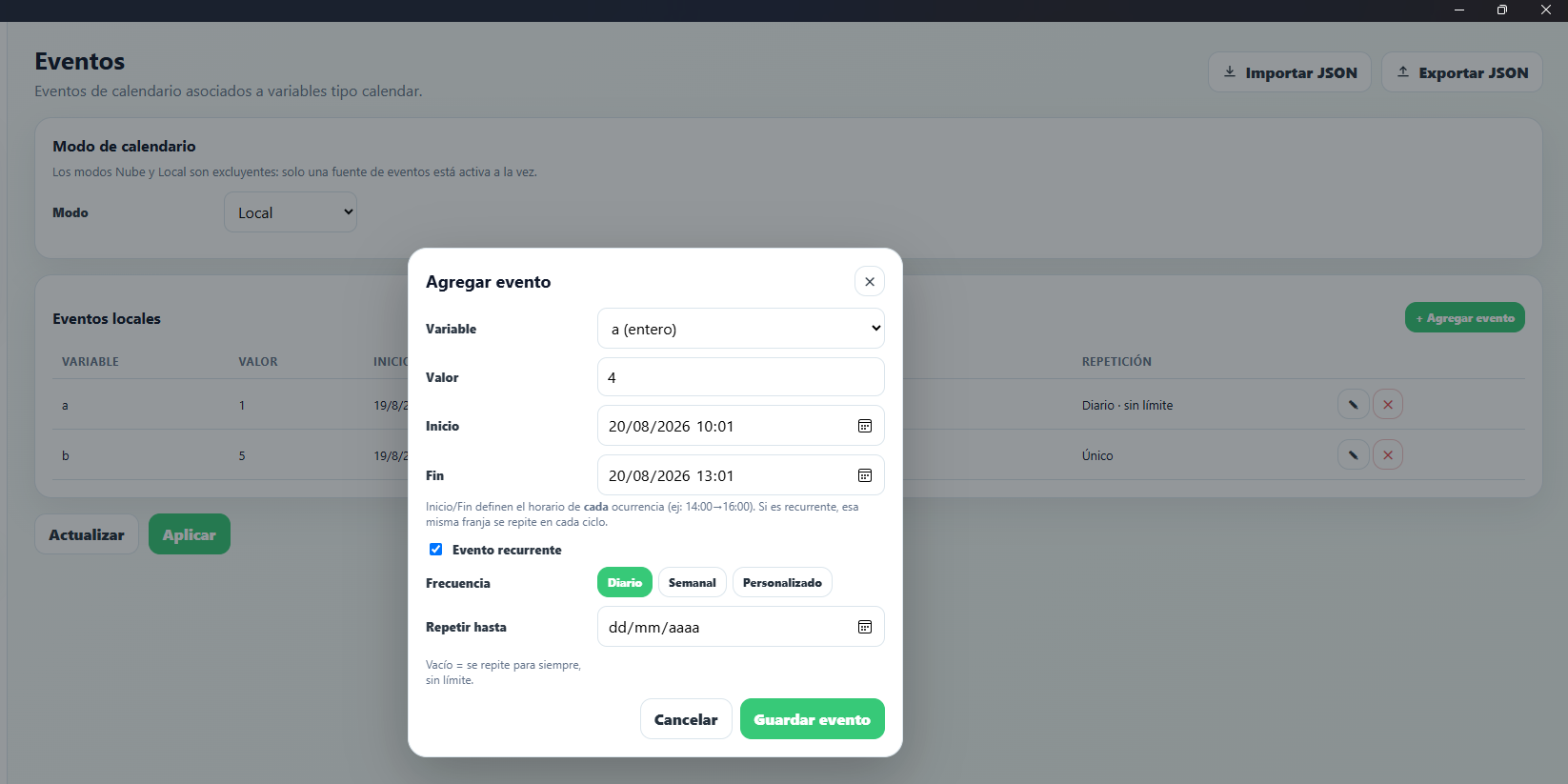
- Variable — which of the
calendarvariables defined in the script is affected by this event. - Value — the value the variable takes while the event is active.
- Start / End — define the time range of each occurrence of the event (for example, 14:00 → 16:00). If the event is recurring, that same time range repeats on each cycle.
- Recurring event — if unchecked, the event occurs only once, between the indicated Start and End (One-time).
- Frequency — with the event marked as recurring, choose between Daily, Weekly, or Custom (every N days).
- Repeat until — the recurrence's end date. If left empty, the event repeats indefinitely, with no limit.
When the device's current time (unix_ts_utc) falls within the range of an active event, the calendar variable takes the value defined for that event; outside that range, it goes back to the default value declared in the script. If two events overlap, the one that starts first is applied (see Calendar variables).